Showing posts with label MSCRM 2011. Show all posts

Clone the record from Javascript

Our client want a new function to clone the record from existing one. For example, we have one entity called new_student entity.

The following are the steps how to catch this function in MSCRM 2011.
1) Add the clone button on the Form's Ribbon.
2) Create new attribute "Clone From" in the new_student entity.
3) Call the javascript function "cloneRecord()" when user click the "Clone" Ribbon button.
4) This "cloneRecord()"  will redriect to URL that go to create new record form with existing record id.
5) On the form load, do fetch xml using with passed record id and fill the value on the new form.

1)Add the clone button on the Form's Ribbon.

2) Create new attribute "Clone From" in the new_student entity.


And put it into the new_student form and hide this attribute.

3) Call the javascript function "cloneRecord()" when user click the "Clone" Ribbon button.
4) This "cloneRecord()" will redriect to URL that go to create new record form with existing record id.

function CloneRecord() {

    var serverUrl;

    var errorMessage = "Context to retrieve the Server URL is not available.";
    if (typeof GetGlobalContext != "undefined") {
        serverUrl = GetGlobalContext().getServerUrl();
    }
    else {
        if (typeof Xrm != "undefined") {
            serverUrl = Xrm.Page.context.getServerUrl();
        }
        else {
            alert(errorMessage);
            return;
        }
    }
    if (serverUrl.match(/\/$/))
    {
        serverUrl = serverUrl.substring(0, serverUrl.length - 1);
    }

    var recordUrl = serverUrl + "/main.aspx?";

    var params = "etn=new_student";

    params += "&pagetype=entityrecord&extraqs=";
    params +=  encodeURIComponent("&new_clonefrom='"+Xrm.Page.data.entity.getId()+"'");
    var newStudentURL = recordUrl + params;
    window.open(newStudentURL , "_blank", "width=900px,height=600px,resizable=1");
}


5) On the form load, do fetch xml using with passed record id and fill the value of old record on the new form.


var _oService;
var _sOrgName = "new";
var _sServerUrl = Xrm.Page.context.getServerUrl();


function FormOnLoad()
{
 var FORM_TYPE_CREATE = 1;
 var FORM_TYPE_UPDATE = 2;
 var FORM_TYPE_READ_ONLY = 3;
 var FORM_TYPE_DISABLED = 4;
 var FORM_TYPE_QUICK_CREATE = 5;
 var FORM_TYPE_BULK_EDIT = 6;
 var formType = Xrm.Page.ui.getFormType();
 if (formType == FORM_TYPE_CREATE) {
  var CloneRecordId=Xrm.Page.getAttribute("new_clonefrom").getValue() ;
  CloneRequest(CloneRecordId);
 }
}
function CloneRequest(CloneStudentId)
{

 var sFetch = "<fetch mapping='logical' count='10'>" +
       "<entity name='new_student'>"+
      "<attribute name='new_studentid'/>"+
      "<attribute name='new_name' />"+
     "<order attribute='new_name' descending='false' />"+
     "<filter type='and'><condition attribute='new_studentid' value=" + CloneStudentId+ " uitype='new_student' operator='eq'/></filter>" +
      "</entity>"+
    "</fetch>";
 _oService = new FetchUtil(_sOrgName, _sServerUrl);
 _oService.Fetch(sFetch, CloneRequestComplete);

}
function CloneRequestComplete(results)
{
  if (results[0].attributes["new_name"] != null) Xrm.Page.getAttribute("new_name").setValue(results[0].attributes["new_name"].value);

}

A managed solution cannot overwrite a Attribute component on the target system that has an unmanged base instane.


Error Detail Message


A managed solution cannot overwrite a Attribute component on the target system that has an unmanged base instance. The most likely scenario for this error is that an unmanaged solution has installed a new unmanaged solution has installed a new unmanaged Attribute component on the target system, and now a managed solution from the same publisher is trying to install that same Attribute component as managed. This will cause an invalid layering of solutions on the target system and is not allowed.


The error caused by....


There is one publisher that named "Company one publisher" and this publisher have imported the 1st unmanaged solution that included User Entity.


Ok, now this publisher try to import the new managed solution that included again User Entity. but this time, the above error message will show in import log.


So, this error will appear when same publisher import different type (managed, unmanaged) solution that included the same entity.


How to solve....
Finally, we import again the 1st unmanged solution  as managed solution. So both solution are managed solution. So, don't do the different type of solution for same entity for same publisher.


Thanks!

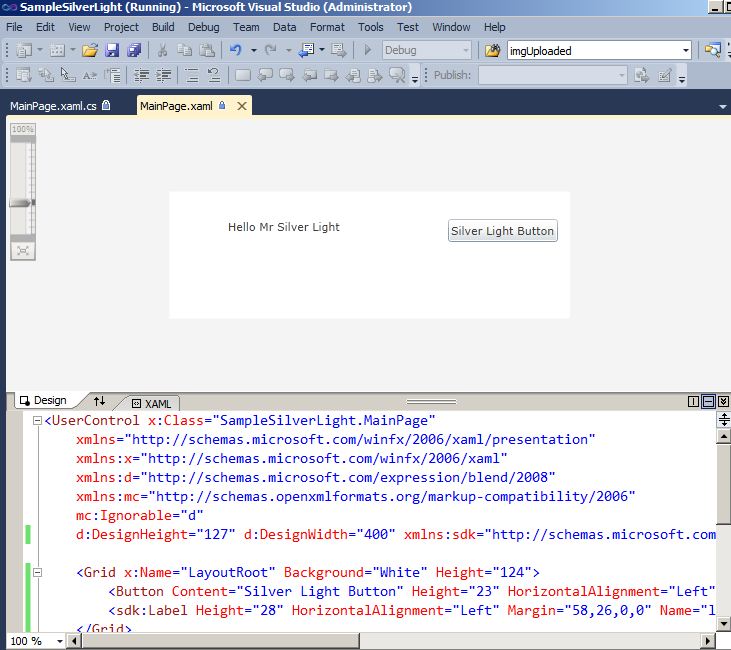
Sample Silver Light to MS CRM 2011 Dashboard


Step 1 : Create new sample SilverLight Project in visual studio 2010.


compile and build it. After that you will see the xap file under the Debug folder


Step 2: Create new web resource in MS CRM 2011 and upload the xap file.


Step 3: In dashboard, you can point out that web resource.


That's all.
Thanks!

Set Up Cache Invalidation to Refresh Changes on the Website

Websites developed using Developer Extensions for Microsoft Dynamics CRM 2011 make heavy use of caching. As a result, changes made to Microsoft Dynamics CRM entities in the web application or in Microsoft Dynamics CRM Online may not immediately show up on the website. To resolve this, you can set up cache invalidation to happen automatically with the use of the web notification plug-ins and web notification URLs. To install web notification plug-ins, you must import a portal managed solution from the Customer Portal or the Partner Relationship Management Portal. For more information and links to these solutions, see Portal Developer Guide for Microsoft Dynamics CRM.
If the web notification plug-ins are installed, ensure that they are enabled for the solution.
Enable Web notification plug-ins
Next, create a new web notification URL (from the Settings menu) that goes to the cache invalidation handler of your website. The URL to your cache invalidation will be http(s)://your-website-domain/Cache.axd.
Web notification URL
Now, when entities are created, updated, or deleted, the cache invalidation handler for your website will be notified and will invalidate the necessary cache depending on what has changed.
Cache can also be invalidated manually by recycling the application pool, rebuilding the website in Microsoft Visual Studio, saving the web.config file, or by adding a browser toolbar button that will hit the cache invalidation handler. This will refresh the website with the Microsoft Dynamics CRM changes.
The toolbar script is a link or shortcut that is added into your browser favorites with the value for its URL as shown here.
In Internet Explorer, use this script:
javascript:var sURL=document.location.protocol + '//' +document.location.host;var oHttp=new ActiveXObject("Msxml2.XMLHTTP.6.0"); oHttp.Open('GET',sURL+'/Cache.axd?Message=InvalidateAll&d=' + (new Date()).valueOf(),false);oHttp.Send();window.location.reload(true);
In Firefox, use this script:
javascript:var%20url%20=%20document.location.protocol%20+%20'//'%20+%20document.location.host%20+%20'/Cache.axd?Message=InvalidateAll&d='%20+%20(new%20Date()).valueOf();%20var%20req%20=%20new%20XMLHttpRequest();%20req.open('GET',%20url,%20false);%20req.send(null);window.location.reload(true);
To use the script, just open the website you want to refresh and then click your favorite that you set previously. The cache for that website will be invalidated and you should see the changes you made.


Important Note....
Please recycle the CRM app pool in ISS. Once it restarted, it can start to notify to web portal.